 RAPP Student Docs
How to Login to the RHEMA App
Follow this guide to easily log into the RHEMA App using your registered credentials. It covers the steps to enter your login details, troubleshoot common issues, and access your account securely.
Enter Your Credentials
Type in your Student Email and the Password you created during onboarding and click the Sign In button.
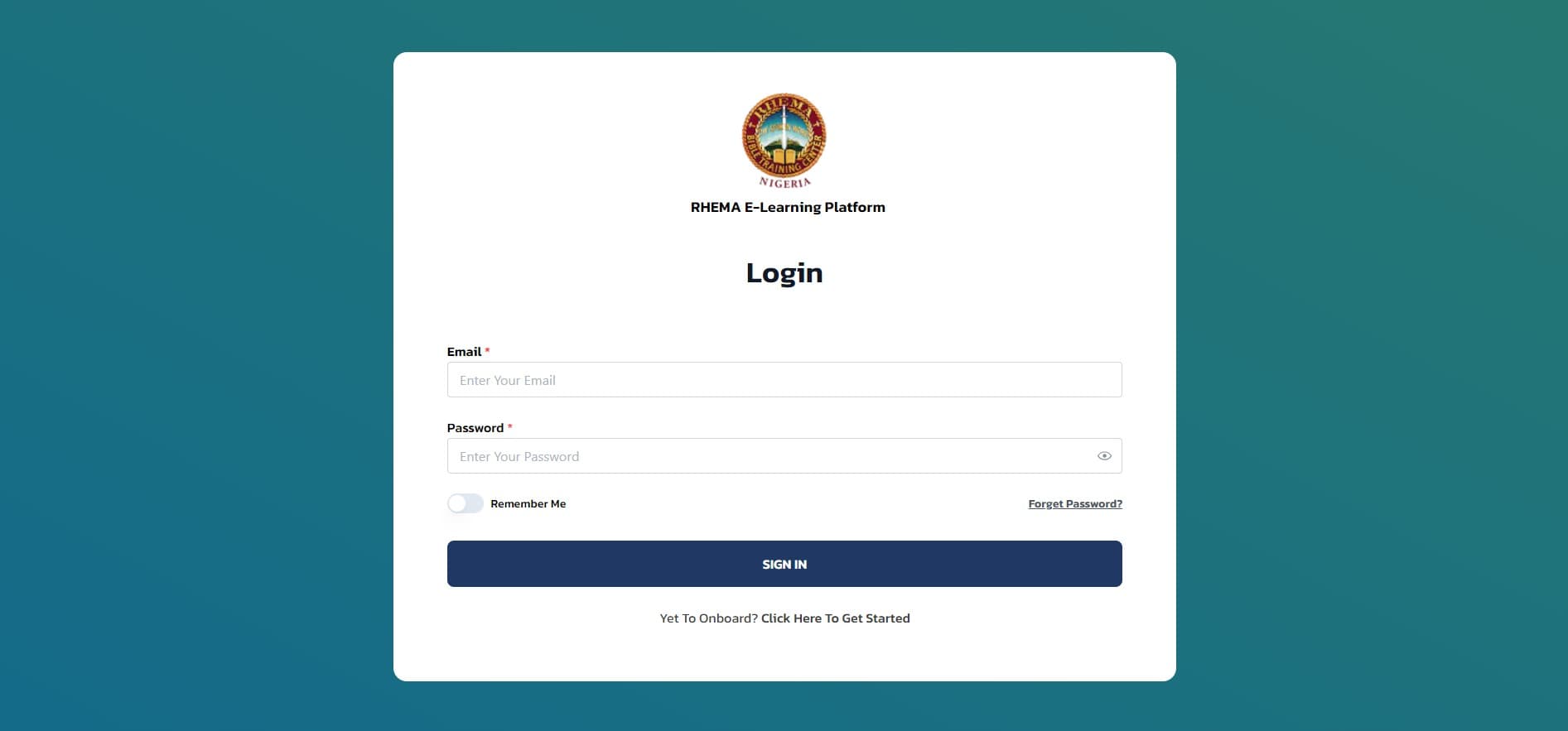
Tip: Make sure your email is typed in lowercase and there is no trailing space if you used autocomplete.
Access Your Dashboard
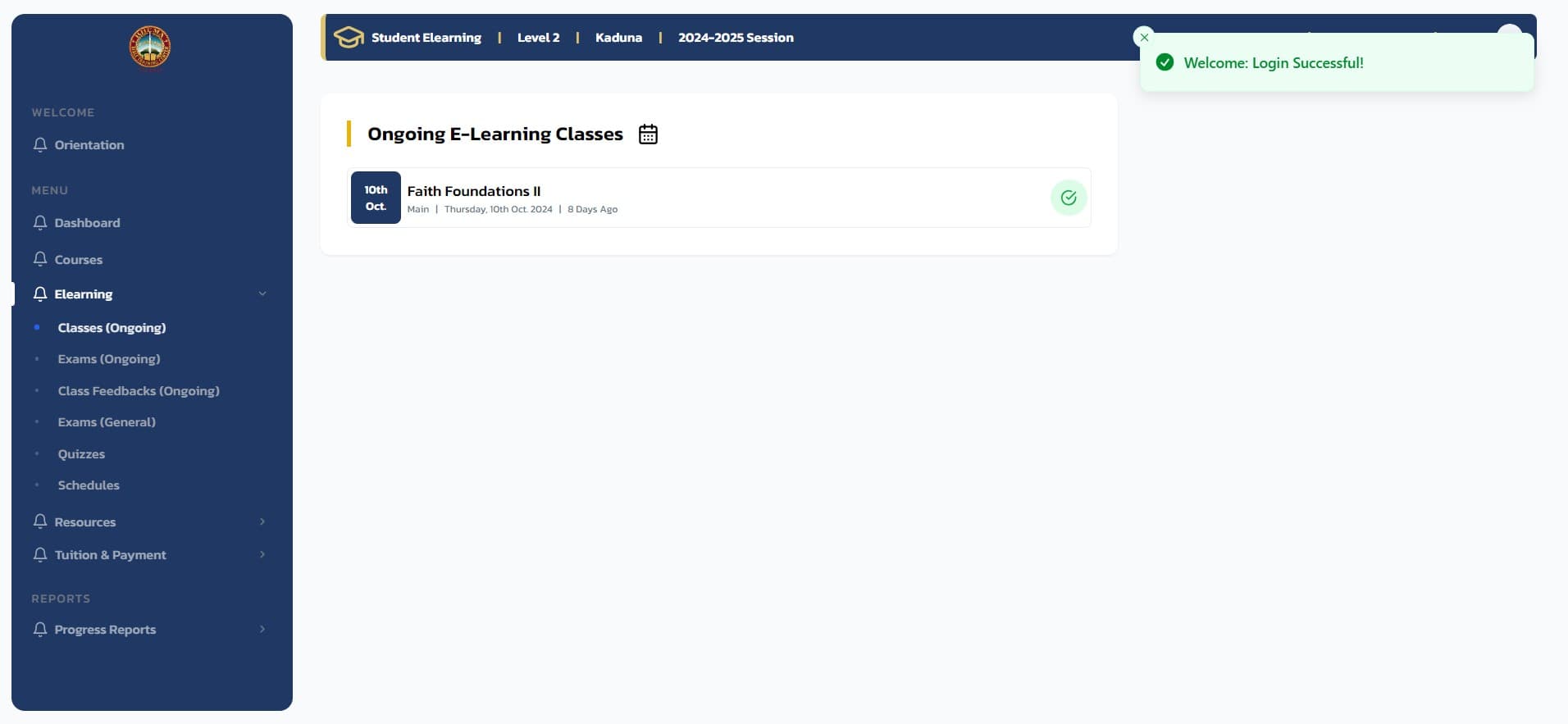
If you entered the correct details, you will be redirected to the E-learning page.
Troubleshooting
If you're having trouble logging in:
- Check your email format: Ensure it's in lowercase with no extra spaces
- Verify your password: Make sure caps lock is off and you're using the correct password
- Clear your browser cache: Sometimes cached data can cause login issues
- Try a different browser: This can help identify browser-specific issues
Need Help?
- Forgot your password? Use our password reset guide
- New to the platform? Start with our onboarding guide
How to Onboard on the RHEMA App
Learn the step-by-step process for creating your account, setting up your profile, and navigating key features on the RHEMA App. This guide will help you quickly get started and make the most of the app's functionalities.
How to Reset Your Password on the RHEMA App
This guide explains how to securely reset your password on the RHEMA App. Follow these steps to regain access to your account in case you've forgotten your password or need to update it for security reasons.