 RAPP Student Docs
How to Reset Your Password on the RHEMA App
This guide explains how to securely reset your password on the RHEMA App. Follow these steps to regain access to your account in case you've forgotten your password or need to update it for security reasons.
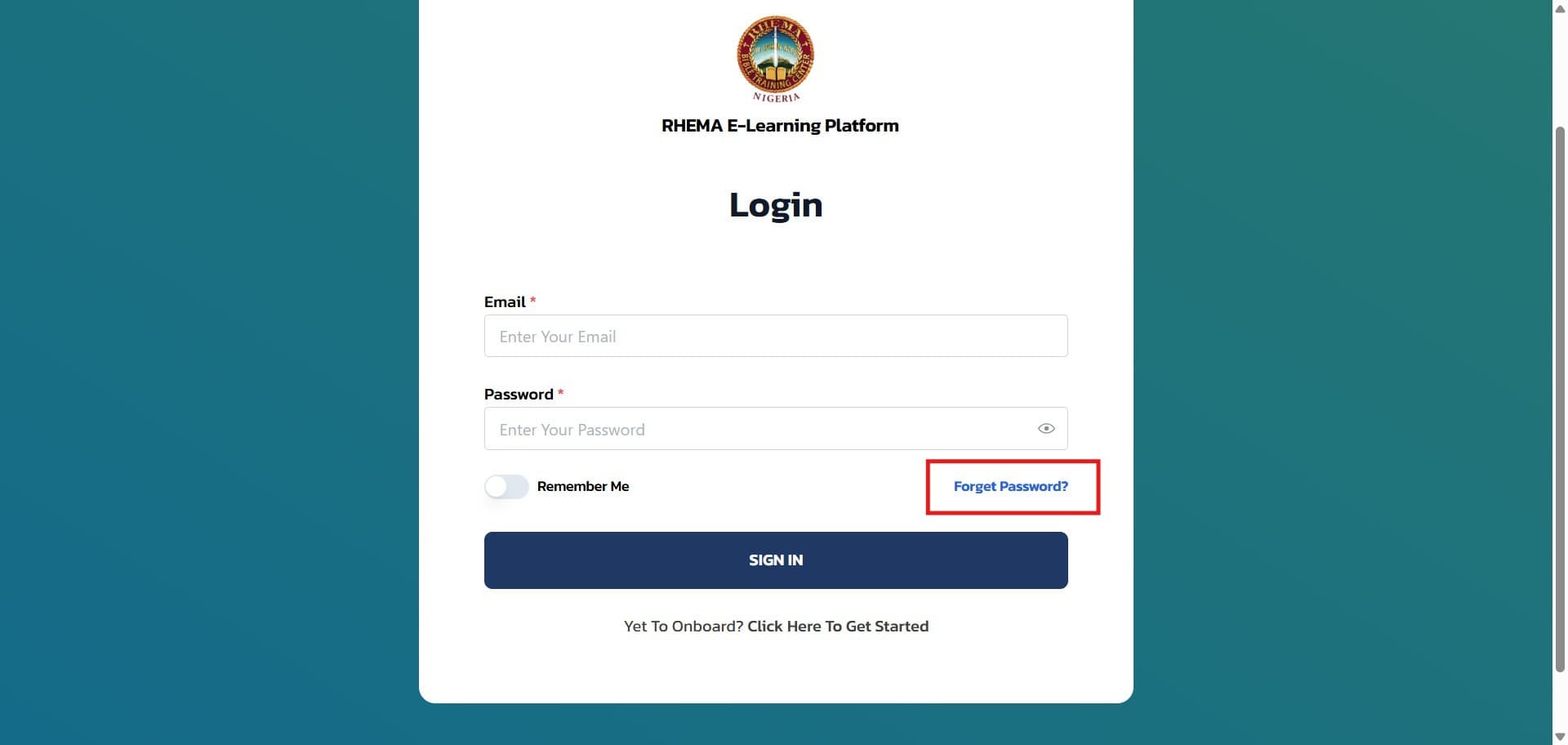
Navigate to the Login Page
Go to app.rhemanigeria.com in your web browser.
If you're currently logged in, make sure to log out of the app first.
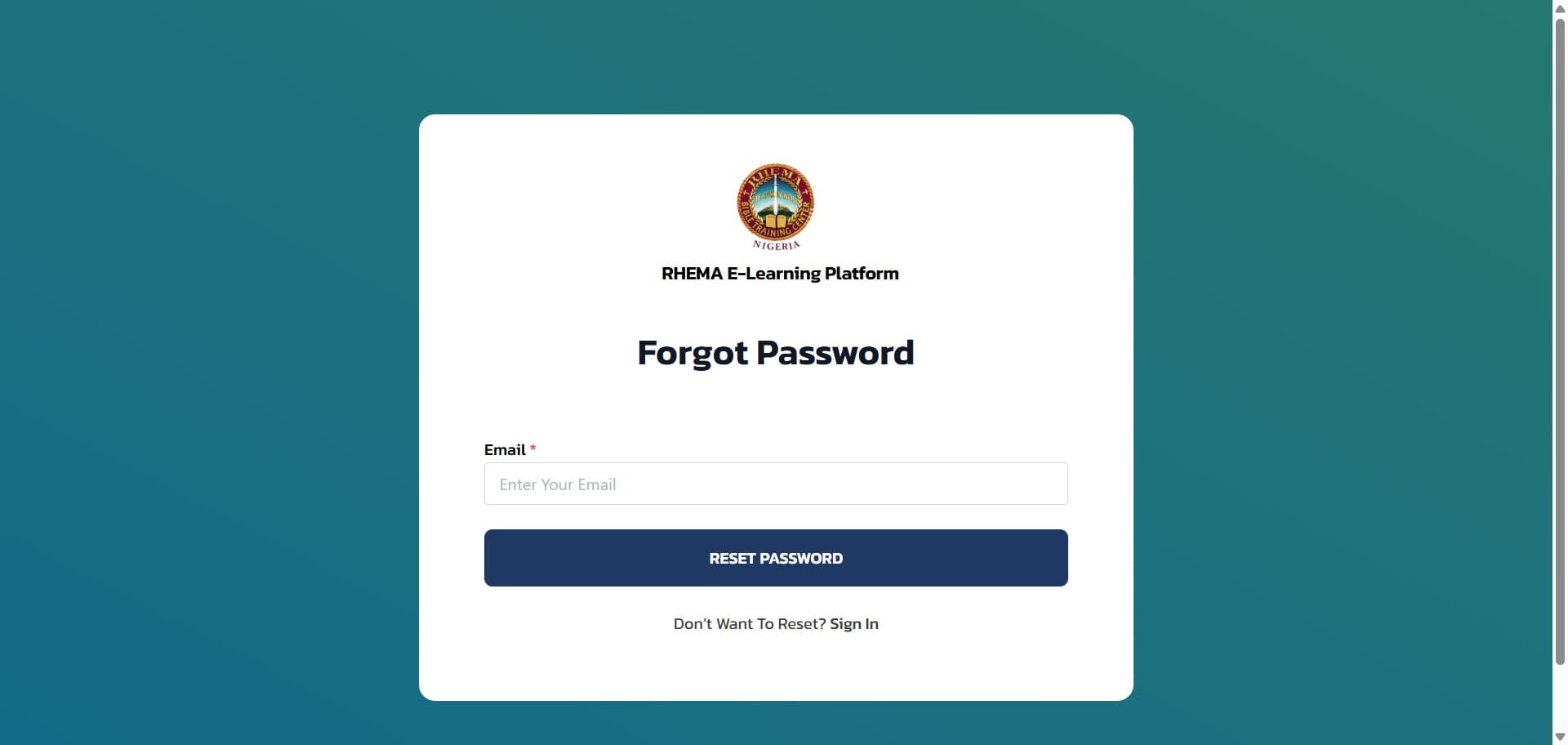
Request Password Reset
Enter your email address (e.g., rhemastudent@gmail.com) and click on the Reset Password button to request a password reset link.
Check Your Email
Open your email and look for an email from RHEMA Nigeria. Click on the email titled "RHEMA Nigeria Password Reset" and click on the "Reset Your Password" button in the email.
Clicking the button will open a new tab in your browser and take you to the Change Your Password page.
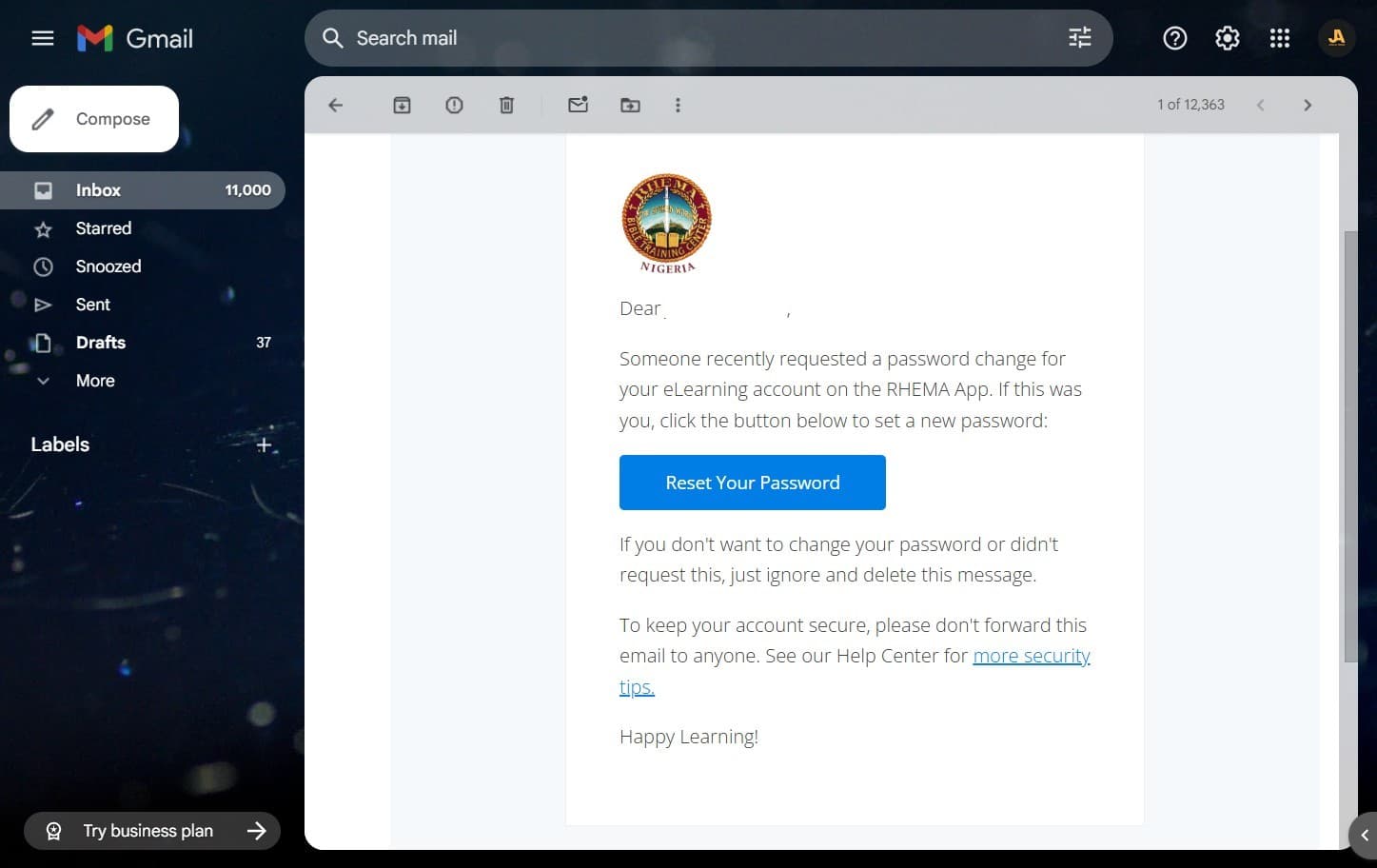
If you can't find the email in your inbox, check your spam folder for the email.
Set Your New Password
On the Change Your Password page, type in your new password in the password and confirm password fields, then click on the "Sign In" button to sign in to the app.
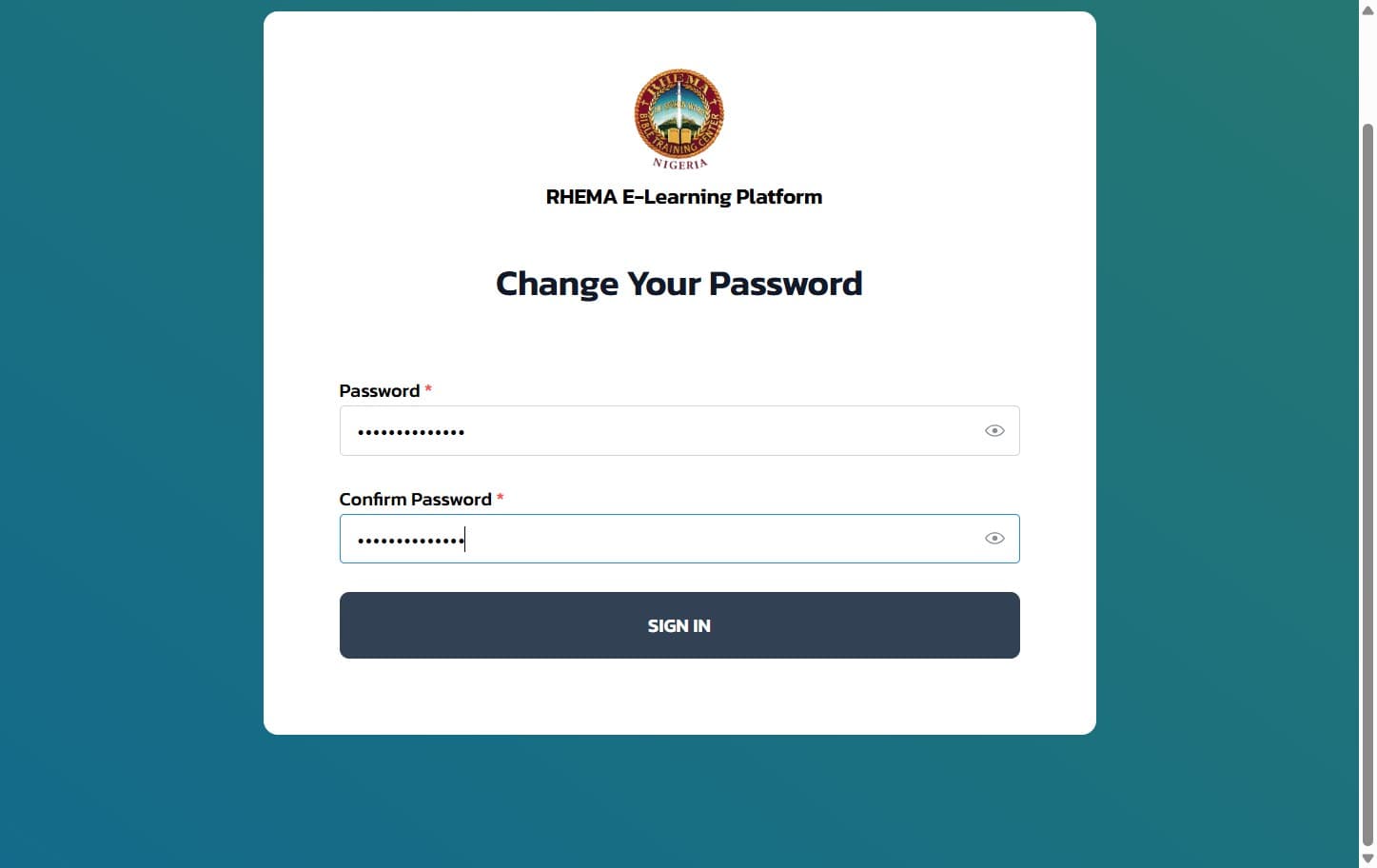
Make sure your new password is strong and secure. Use a combination of letters, numbers, and special characters.
Security Tips
- Use a strong password: Include uppercase and lowercase letters, numbers, and special characters
- Don't reuse passwords: Use a unique password for your RHEMA account
- Keep it secure: Don't share your password with others
- Regular updates: Consider changing your password periodically for better security
Next Steps
After resetting your password: