 RAPP Student Docs
How to Take E-learning Classes on the RHEMA App
This guide walks you through accessing and navigating E-learning classes on the RHEMA App. Learn how to enroll in courses, view lessons, and track your progress to enhance your learning experience
Login to the Platform
Navigate to https://app.rhemanigeria.com and login with your username and password.
You can also follow our login guide to access the RHEMA App.
Access Your Classes
After successful login, you will be redirected to the E-learning Class page. Click on the ongoing class you want to take.
You can also click on E-learning → Classes (Ongoing) from the sidebar menu to navigate to the E-learning Class page.
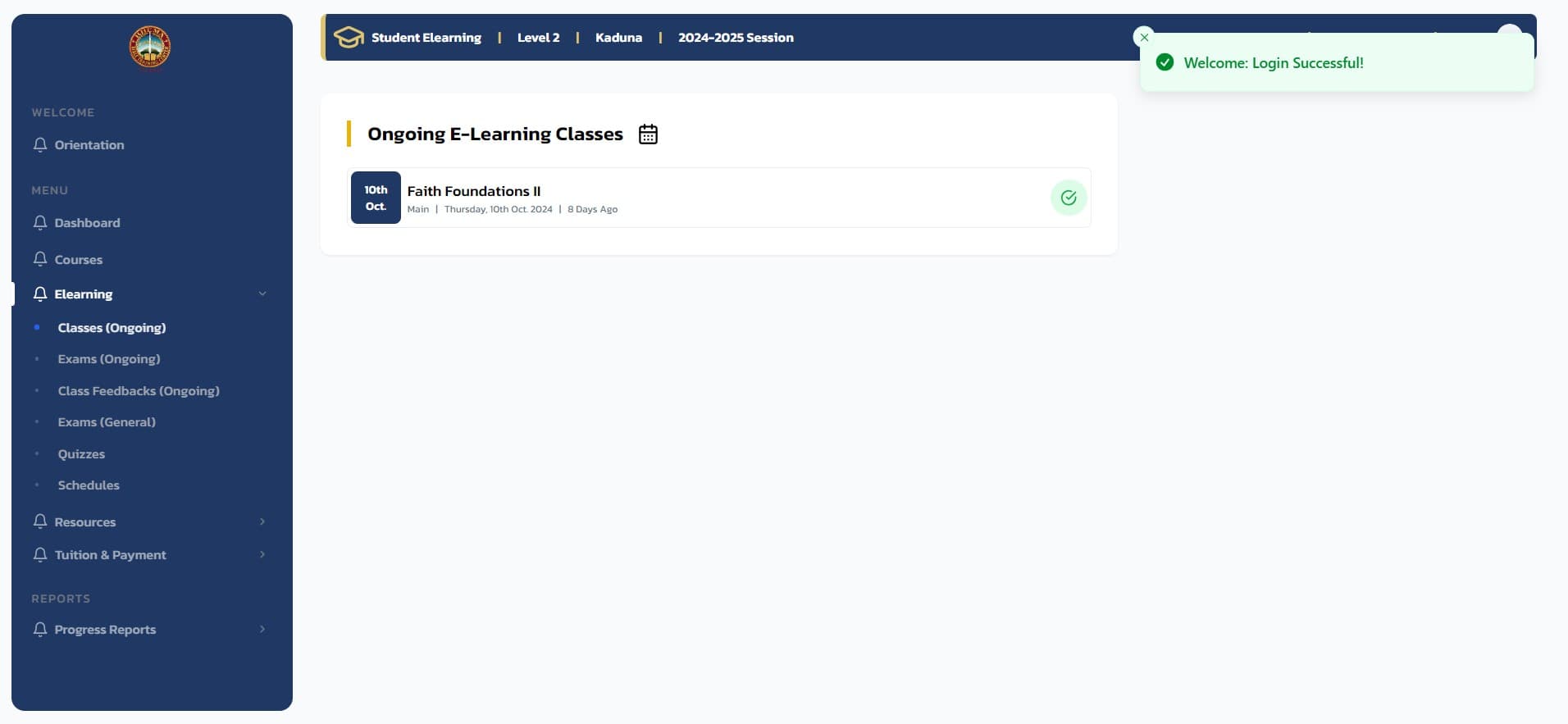
Note: If your campus doesn't have any ongoing E-learning class, you will see a message saying: "There Are Currently No Ongoing E-Learning Classes In [your current] Campus".
Start Your First Session
On the Class page, session 1 is automatically loaded. You can click on the Play button to start listening to session 1.
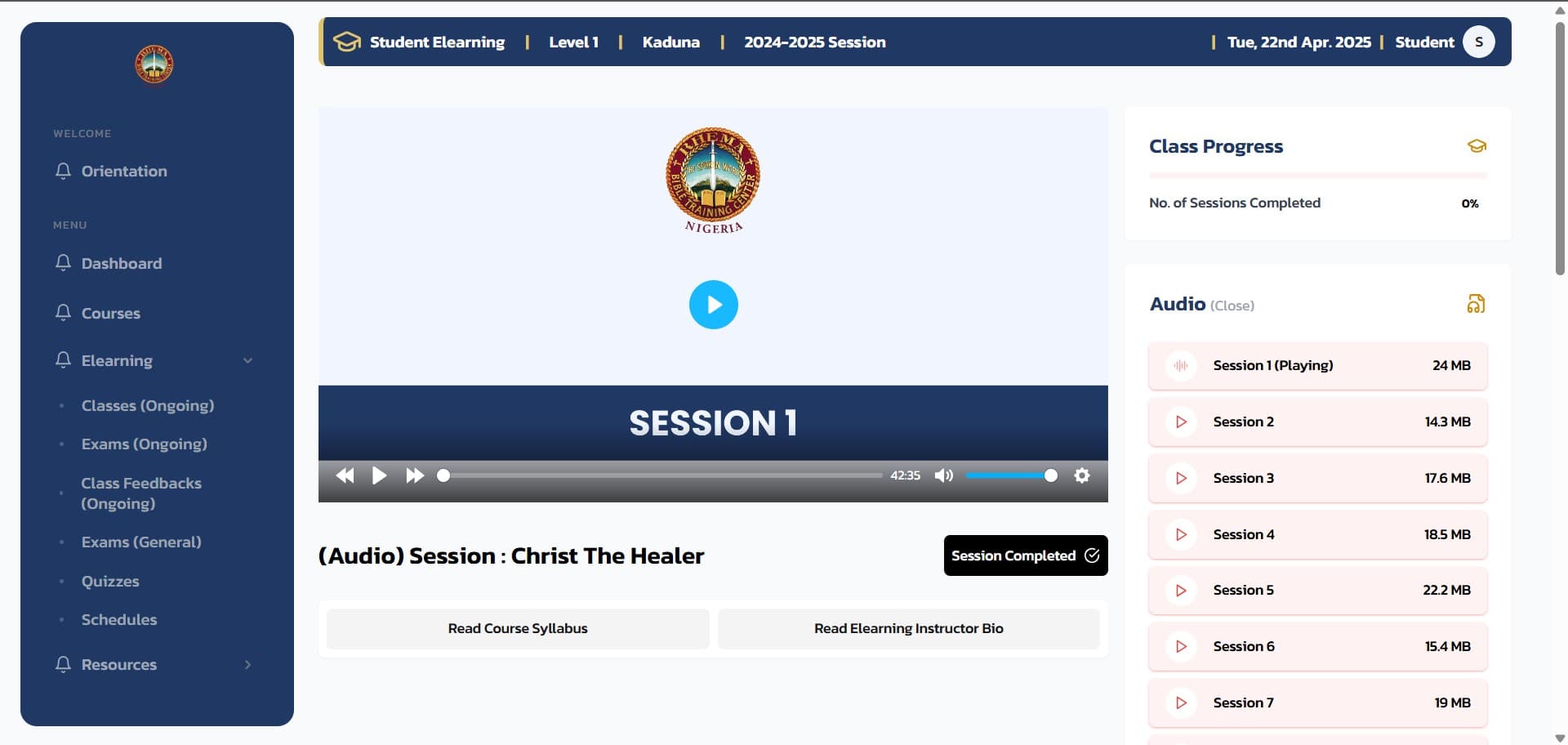
When you are done with a particular session, you can click on the Mark Attendance button to mark attendance for the particular session you have attended. Once you mark attendance for a session, the highlight color of the session changes to green and the percentage of the class progress increases.
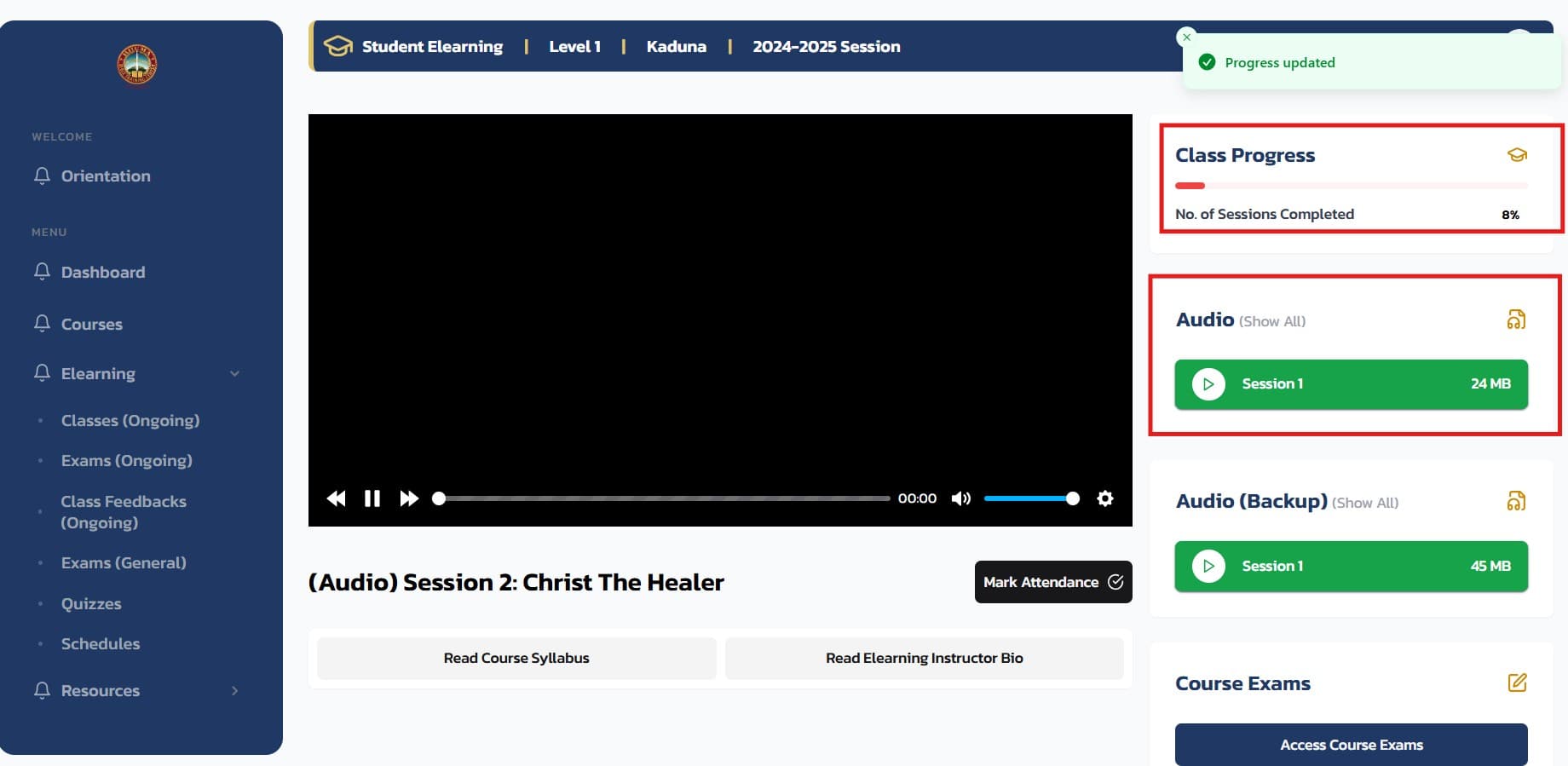
Important: You have to have marked attendance for at least 11 sessions in order to be eligible to write exams for a particular class.
Navigate Between Sessions
You can also click on Audio (Show All) to show all the Sessions of the class. Clicking on any of the other Sessions loads it as the current session.

Tips for Success
- Regular Attendance: Make sure to mark attendance for each session you complete
- Progress Tracking: Monitor your class progress percentage to stay on track
- Session Management: Use the "Show All" feature to easily navigate between sessions
- Exam Eligibility: Remember you need at least 11 sessions completed to be eligible for exams