 RAPP Student Docs
How to Take Exams on the RHEMA App
Complete guide to taking exams on the RHEMA Nigeria e-learning platform, including preparation, navigation, and important exam rules
Login to the Platform
Navigate to https://app.rhemanigeria.com and login with your username and password.
You can also follow our login guide to access the RHEMA App.
Navigate to Ongoing Exams
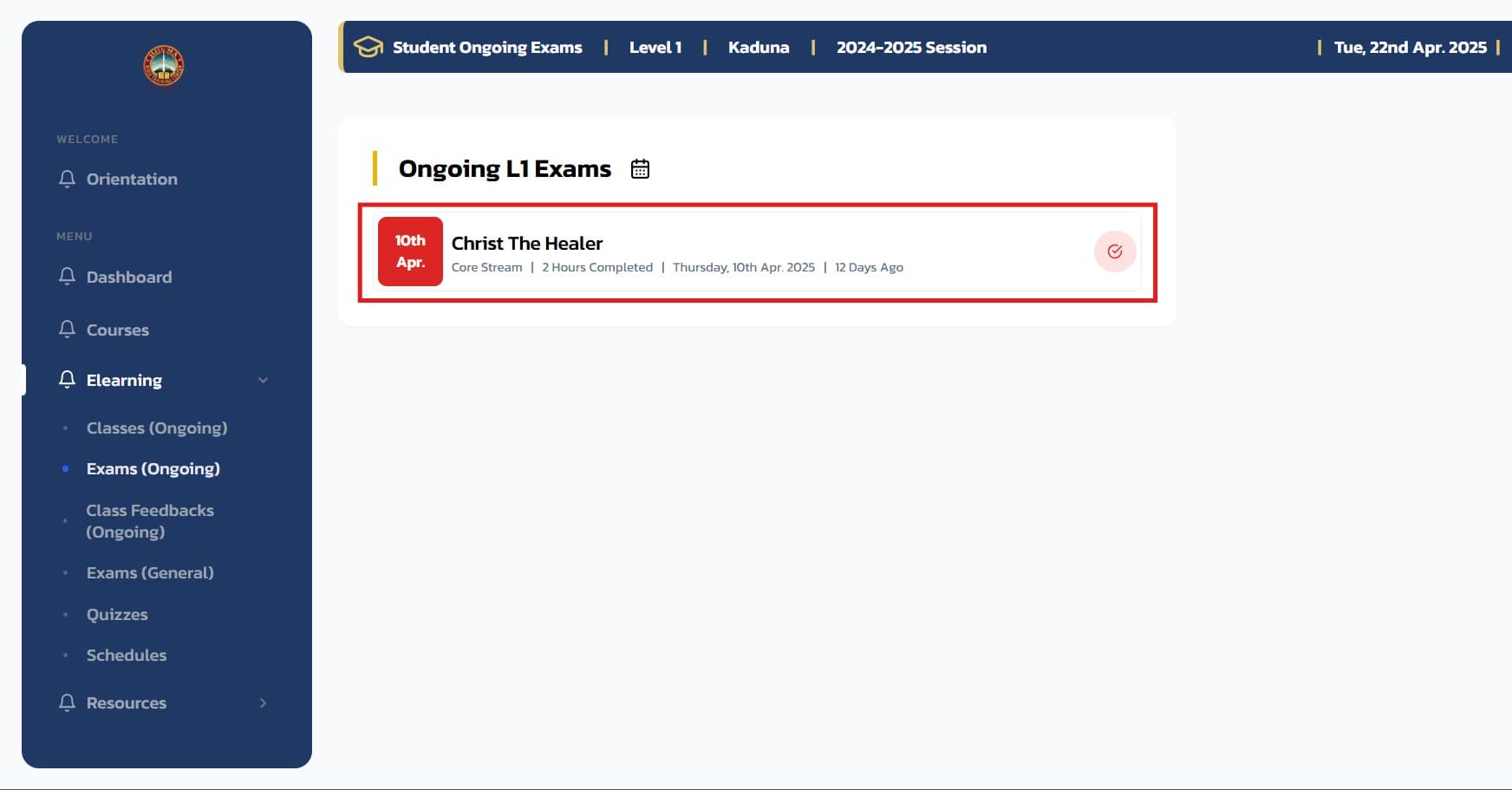
From the sidebar menu, click on E-learning → Exams (Ongoing) to navigate to the Ongoing Exams page.
Select and Start Your Exam
On the Ongoing Exams page, click on the exam you want to take.
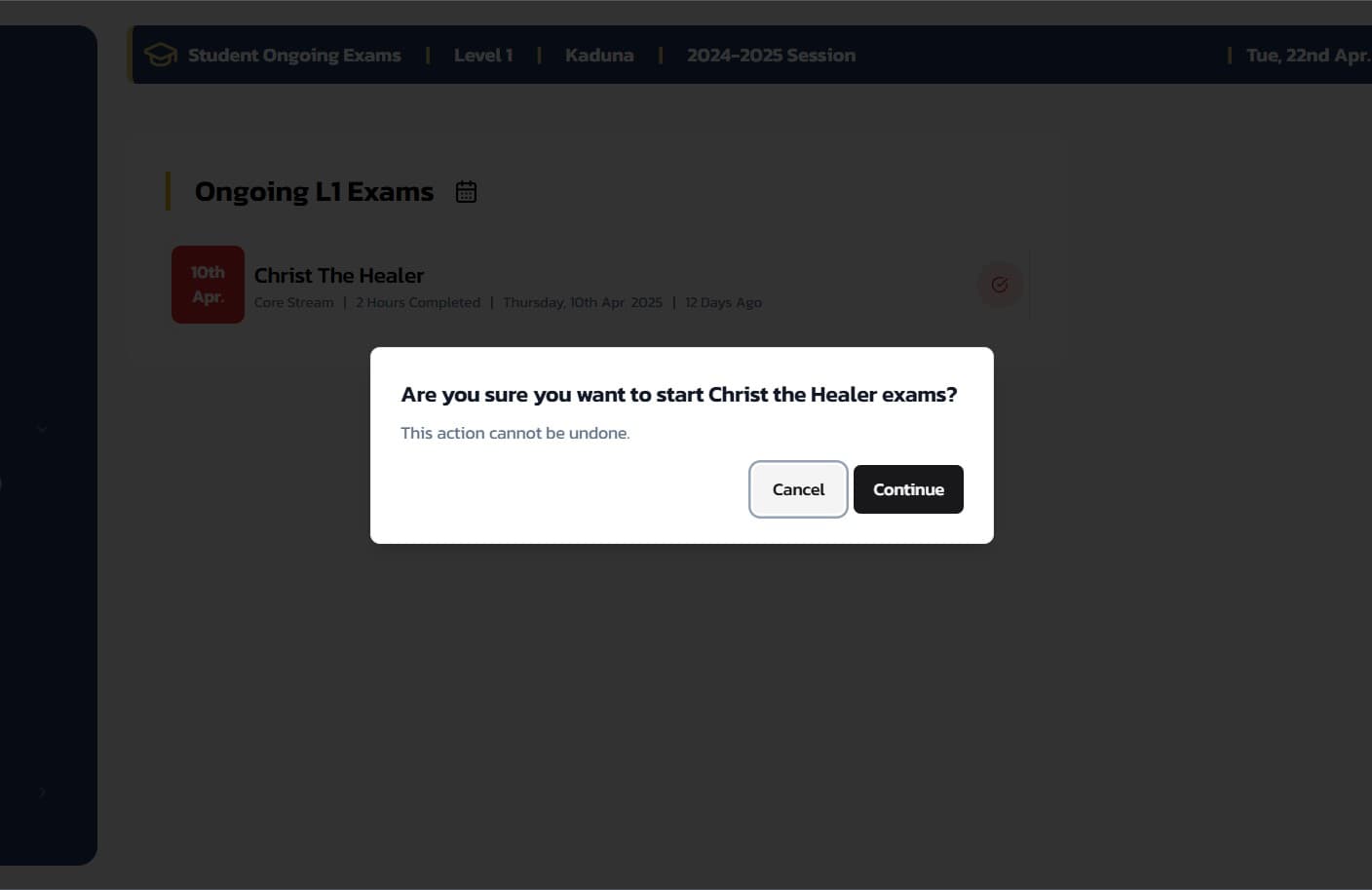
After clicking on the exam, a modal will popup asking if you're sure you want to start the exam. Only click Yes if you're ready to begin.
Important: If you have taken the exam before, it will be colored green instead of red. You only get one chance at writing exams for each course.
Complete Your Exam
Once on the exam page, your questions are loaded and you can select from the available answers. You can click on the Clear Answer button to clear your selection.
There's a visual summary showing the total number of questions you have answered. Your answered questions are colored in cyan.
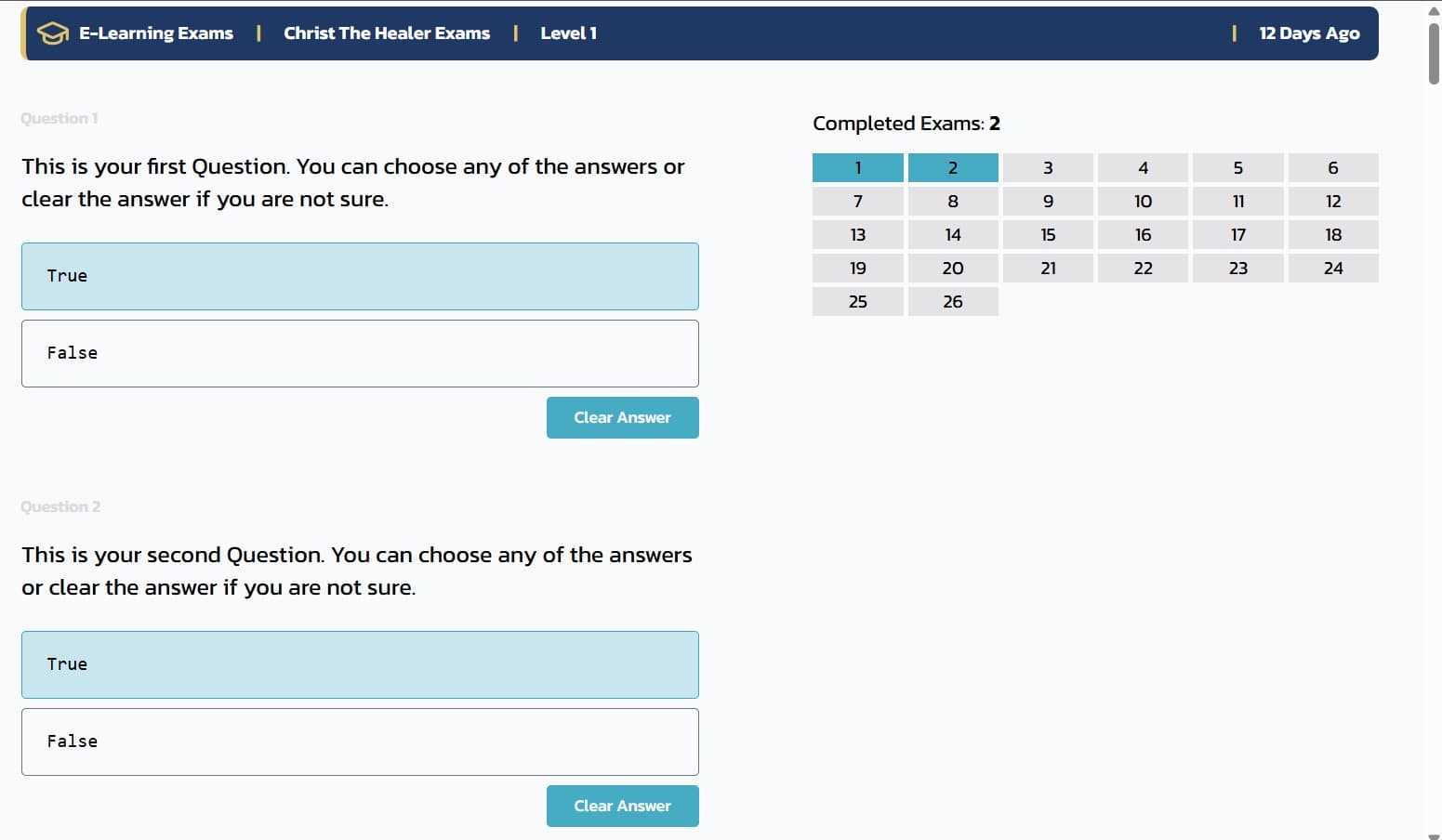
When you're done, click the Submit Exams button to submit your answers.
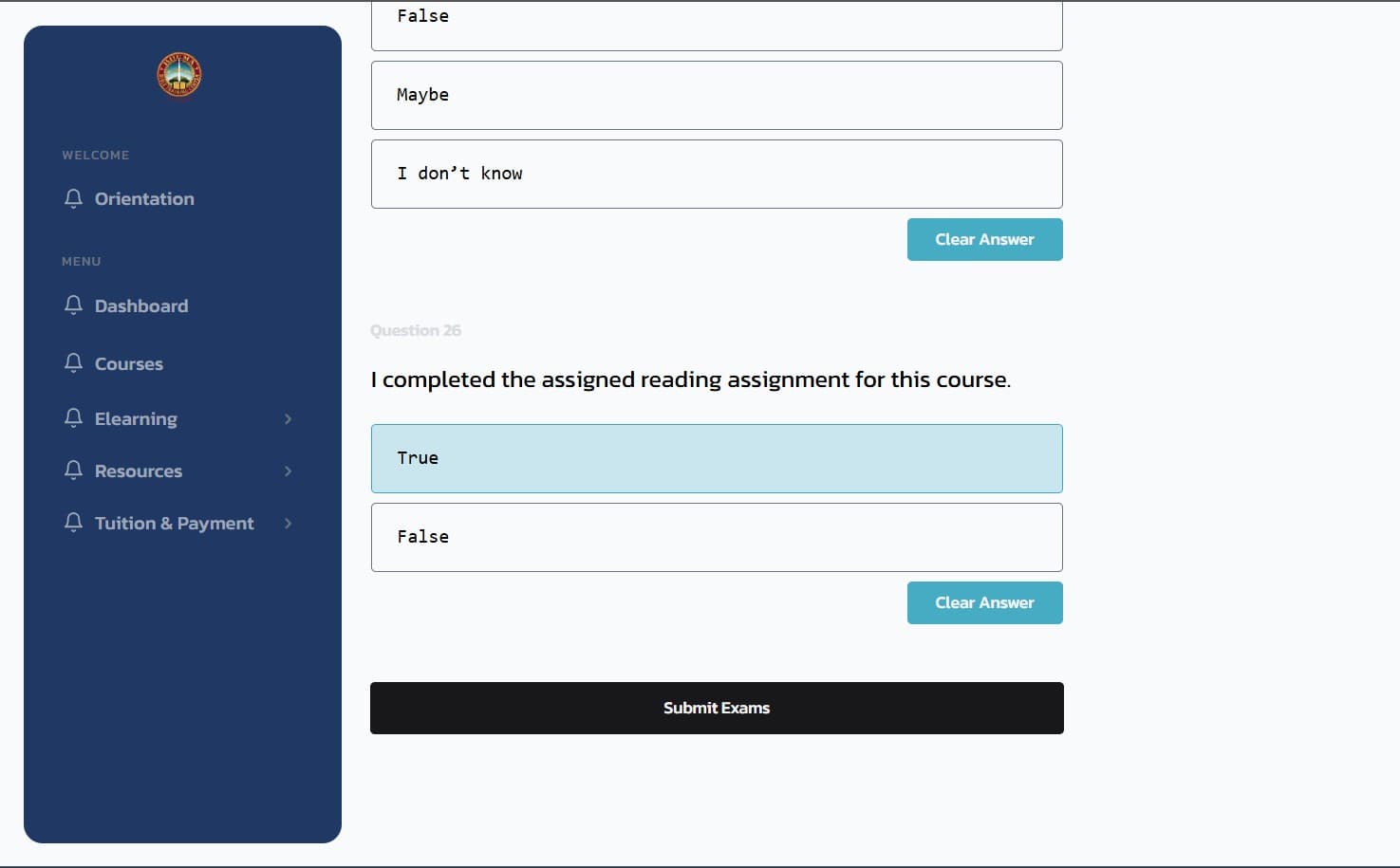
Note: You can only submit when you have answered all questions. The Submit button remains inactive until all questions are completed.
Submit and Review Results
Click Submit Exams and confirm in the popup modal.

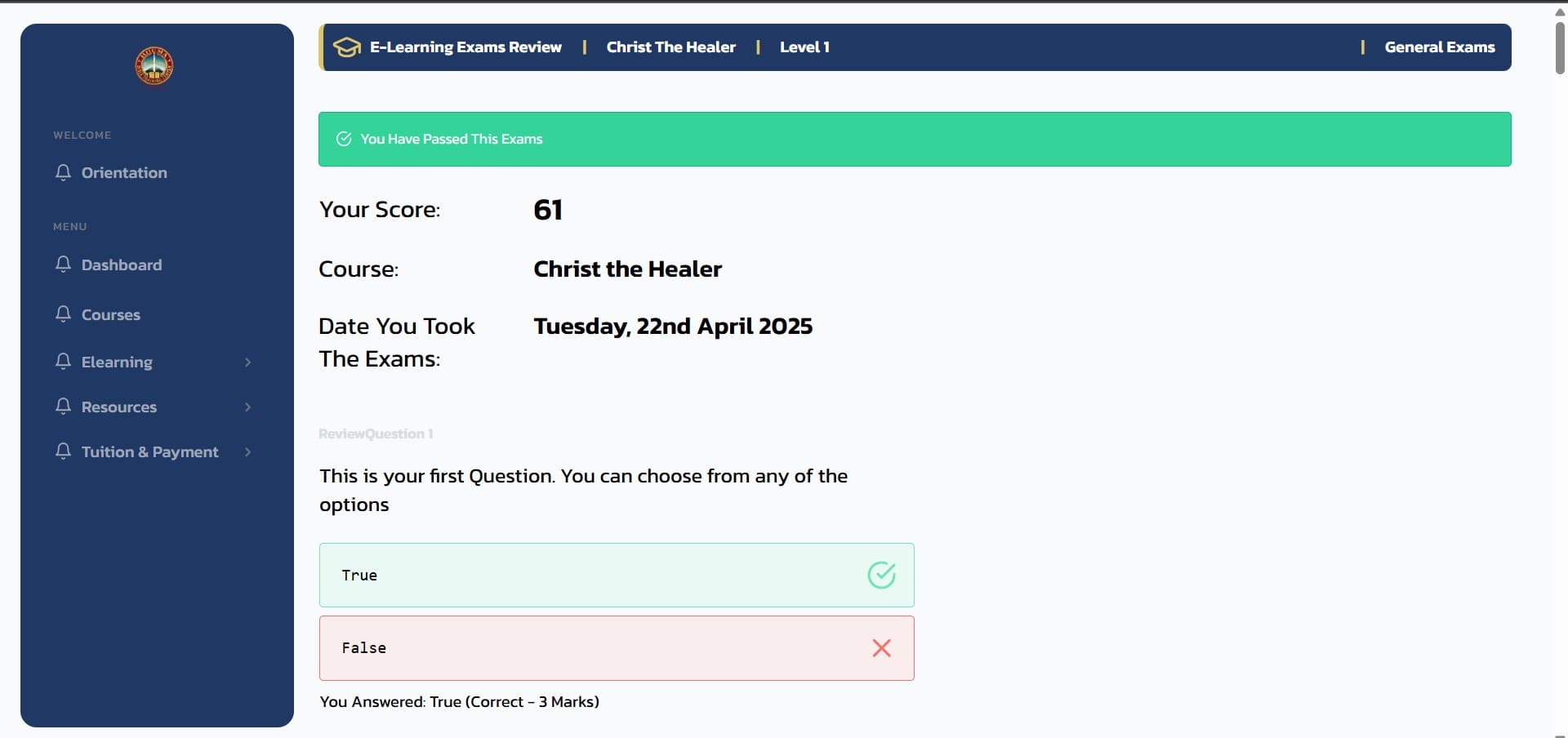
After successful submission, the exam shows your score, the questions, your selected answers, and the correct answers to each question. You'll also receive an email with the exam summary.
Login to the Platform
Navigate to https://app.rhemanigeria.com and login with your username and password.
You can also follow our login guide to access the RHEMA App.
Navigate to the General Exams page
From the sidebar menu, click on E-learning → Exams (General) to navigate to the Exams page.
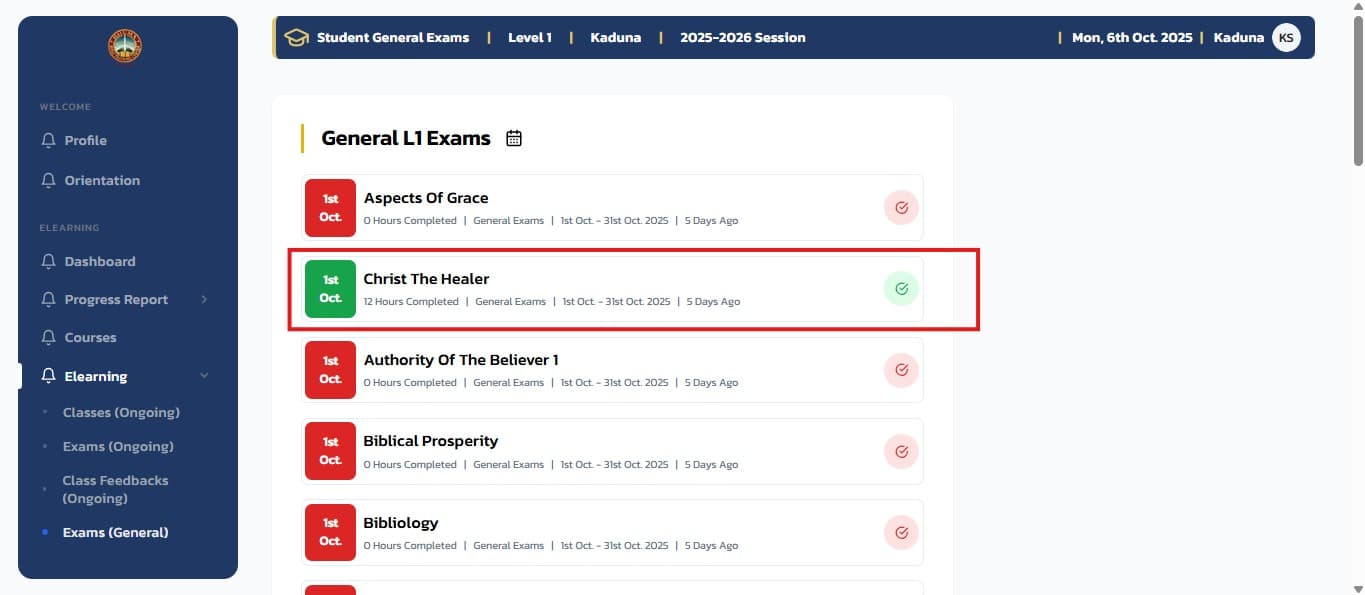
This will show you a list of all available exams for your courses. Click on any available exam from the list to proceed to the exam page.
Note: Exams that are eligible to take would be marked in green. You can only take exams for courses which you have attended at least 11 out of 12 sessions either online or onsite.
Complete Your Exam
Once on the exam page, your questions are loaded and you can select from the available answers. You can click on the Clear Answer button to clear your selection.
There's a visual summary showing the total number of questions you have answered. Your answered questions are colored in cyan.
When you're done, click the Submit Exams button to submit your answers.
Note: You can only submit when you have answered all questions. The Submit button remains inactive until all questions are completed.
Submit and Review Results
Click Submit Exams and confirm in the popup modal.
After successful submission, the exam shows your score, the questions, your selected answers, and the correct answers to each question. You'll also receive an email with the exam summary.
Important Note About Exam Availability:
You may see a message saying "There Are Currently No Ongoing Exams In [your current] Campus" when checking either the Ongoing or General Exams pages.
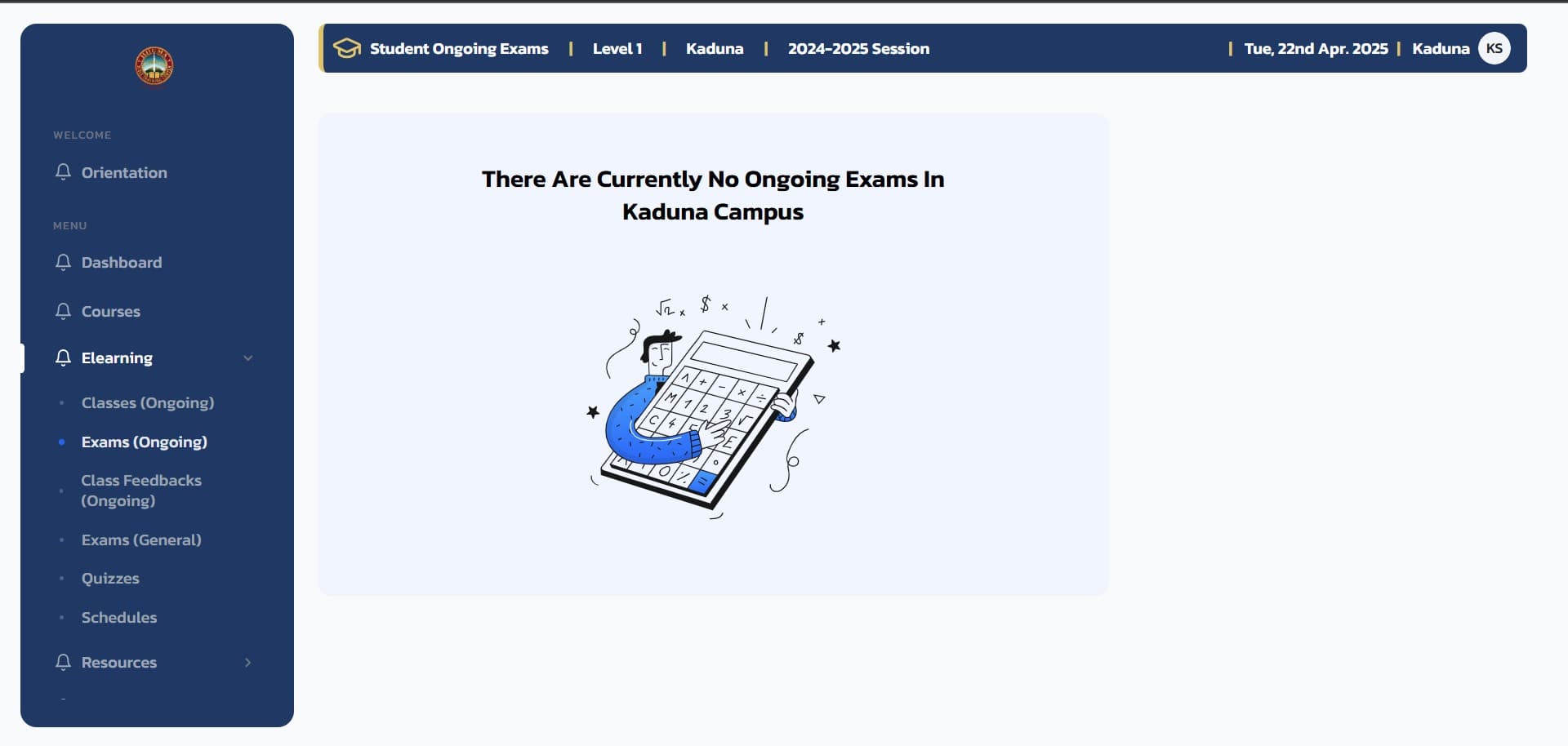
It's important to keep track of your class schedule to know exactly when exams will be available for your courses.
Important Exam Rules
-
Attendance Requirement: You must have marked attendance for at least 11 sessions to be eligible for exams
-
Time Limit: Every exam is 90 minutes (1 hour, 30 minutes). After this period, the app automatically submits your exam
-
Technical Requirements: Ensure good internet connection, make sure your device has sufficient battery, and note that the app will grade you even if you open the exam page briefly without starting
-
Exam Structure (for most Level 1 courses): Usually 26 questions total - Questions 1-25 are 3 marks each (75 marks), Question 26 is 25 marks (usually about completing reading assignments), for a Total of 100 marks
-
One Attempt Only: You get only one chance per exam - make it count!
Tips for Success
- Prepare thoroughly: Complete all required sessions before attempting exams
- Check your connection: Test your internet stability before starting
- Manage your time: You have 90 minutes - pace yourself accordingly
- Read carefully: Make sure you understand each question before answering
- Don't rush: Take time to review your answers before submitting
Related Guides
How to Take E-learning Classes on the RHEMA App
This guide walks you through accessing and navigating E-learning classes on the RHEMA App. Learn how to enroll in courses, view lessons, and track your progress to enhance your learning experience
Accessing Course Materials on the RHEMA App
This guide helps you locate and understand the course materials and syllabus for each course. Learn how to access course objectives, weekly topics, grading policies, and important deadlines to stay informed and on track throughout your studies.